Storyboards
A storyboard is the animation of a script, saved as a JSON file next to it (intro.md → intro.storyboard.json). It is data, never code, so it is always safe to open, edit, and share. The Storyboard view is where you shape it.
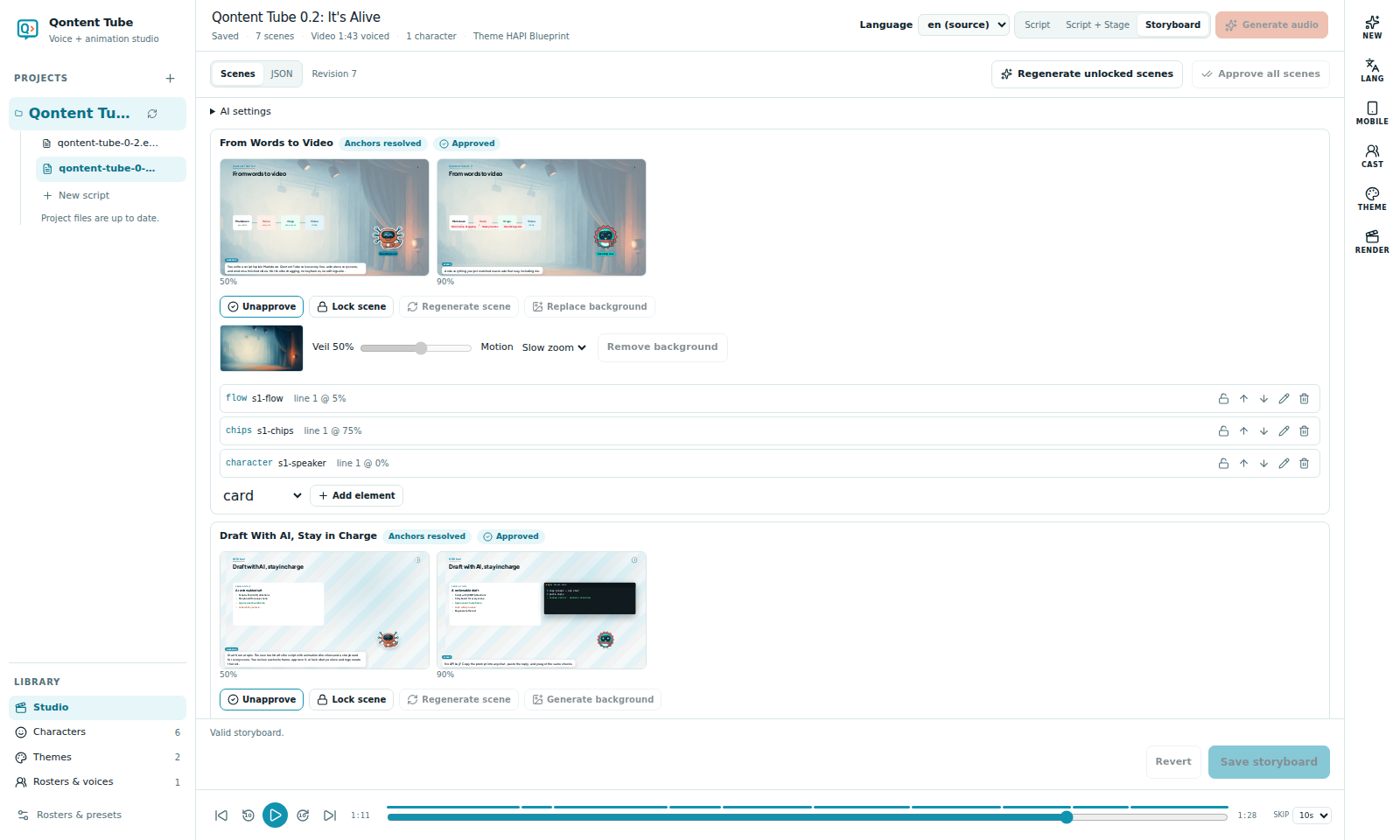
Scenes and elements
Each scene shows two wireframes — the stage at 50% and 90% of the scene — and its list of elements. Fourteen element kinds cover most explainers: title, text, card, chips, terminal, code, flow, stack, bars, table, image, pill, banner, and character.
- Add element picks a kind and adds it with sensible content.
- Edit opens a form for that kind. Fields, lists, and choices come from the element's schema.
- Move elements up or down, or remove them.
- The JSON tab shows the same storyboard as text, validated as you type.
Scenes can also have a subtitle under the title and a small brand mark in the corner, shown in 16:9. To show a real screen in a scene, see Capture scenes.
Anchors: when things appear
Every element has an Enters anchor (and optionally Leaves): a dialogue line of the scene, shown with its speaker and text, and a fraction of that line. "Line 2 at 50%" means halfway through the second line. Items inside cards, chips, flows, and tables can have their own anchors to appear one by one as the narration mentions them.
If you edit the script and a line moves or disappears, the affected scenes are marked Needs review. Nothing is deleted.
Review: approve and lock
- Approve a scene when its wireframe looks right. Approve all scenes in the toolbar approves every scene at once.
- Lock scene or lock a single element to protect it.
- Regenerate scene or Regenerate unlocked scenes asks AI for new elements. Approved and locked scenes are never replaced, and locked elements stay exactly as they are. See AI drafting.
The RENDER tool's checklist updates as soon as you approve, so you can see the moment everything is ready.
Scene backgrounds
Generate background gives a scene its own picture behind the cards.
- Qontent Tube suggests a prompt built from the scene's lines and directions and your theme's colors, with rules that keep text and foreground figures out of the picture and the card areas calm. Edit it as you like.
- Choose a quality: Fast (about 10–20 seconds), Balanced (20–40 seconds), or Best (40–90 seconds, several times the cost).
- Generate background, or Copy prompt and Upload image if you prefer another tool (PNG, JPEG, or WebP up to 6 MB).
The picture fills the stage under a theme-colored veil (0–90%) so every word stays readable, with a slow zoom, pan, or still. Change the veil and motion from the scene card, or remove the background.
Backgrounds need an image service: connect one in Settings → Scene images (OpenAI-compatible, gpt-image-1 by default). If AI assist already uses an OpenAI key, it is reused. Only the prompt is sent.
The image account and any provider charges are yours. No image key is required when you use Copy prompt and upload the result manually. See Requirements before you buy.