Rendering videos
The RENDER tool turns the storyboard, voice, and theme into a finished video on your computer, using Chrome, Chromium, or Edge and ffmpeg that you already have. Rendering is available in the desktop app and local server.
These tools are not bundled. Rendering requires ffmpeg 5 or later with libx264 and AAC, plus a Chromium-family browser. The browser captures animation frames; ffmpeg handles media conversion, video encoding, audio mixing, and final muxing. Voice-only authoring and playback do not require them. Review all requirements before you buy.
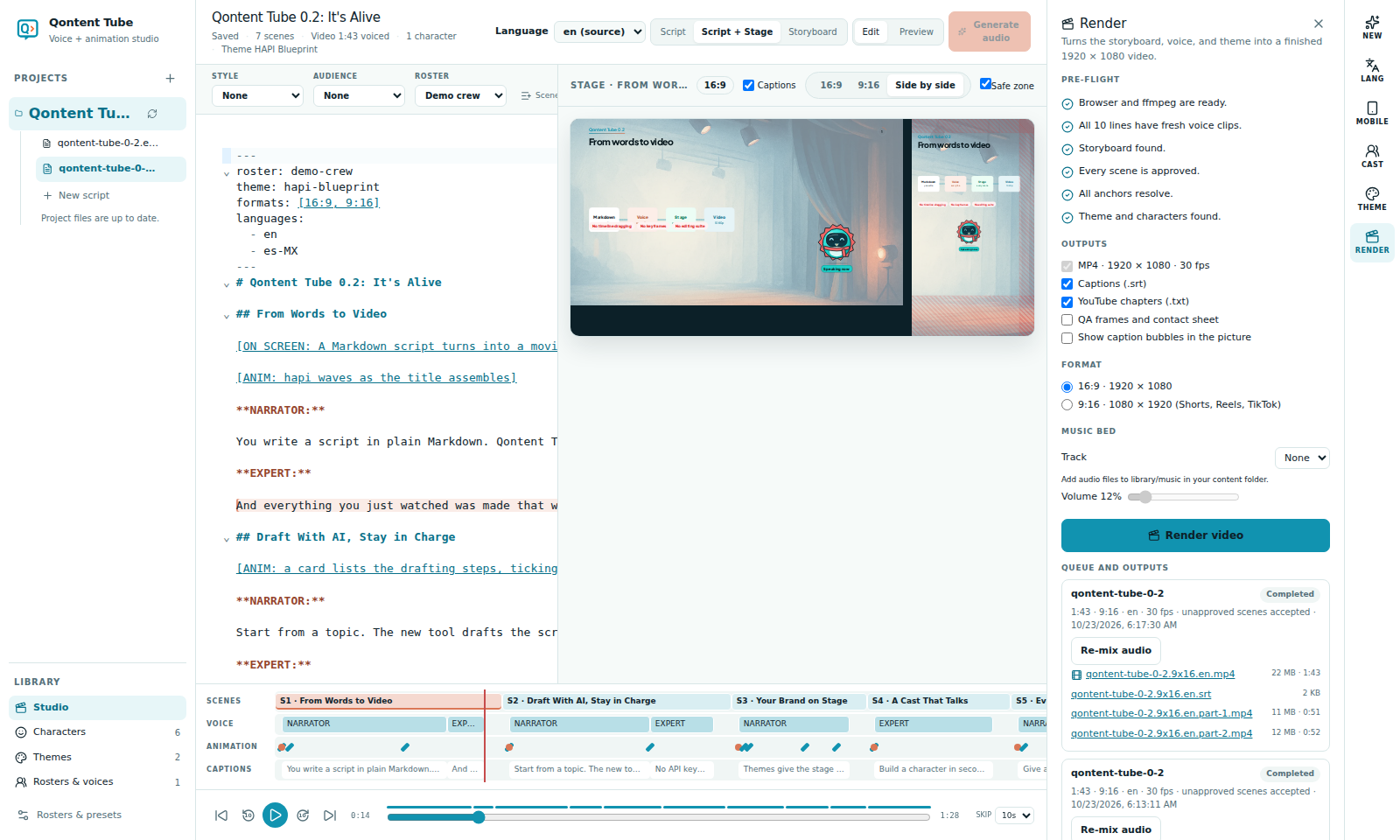
Pre-flight
Before rendering, a checklist confirms that the render tools are ready, every line has fresh voice, a storyboard exists, scenes are approved, anchors resolve, and the theme and characters are found. Warnings can be confirmed; your confirmation is recorded with the job. Without voice, choose Render an animatic for estimated timing and silence.
Outputs
- MP4 · 1920 × 1080 (or 1080 × 1920) · 30 fps
- Captions (
.srt) - YouTube chapters (
.txt) - QA frames and a contact sheet
- Optional caption bubbles in the picture and a looped music bed from
library/music/ - 9:16 parts under 60 seconds (see Mobile formats)
Files are saved in renders/<project>/ in your content folder; earlier files are kept with a timestamp.
Capture scenes
Capture problems block a render with no override, and each render with captures also writes <name>.render-metadata.json. See Validate and approve. Render jobs copy the media they use, so replacing a file later can't change a job.
Queue
Renders run in parallel chunks with progress and time remaining. Cancel and Retry resume from finished chunks. Re-mix audio updates the voice or music without rendering the picture again. Play finished videos right in the app.
If the tools are missing, the setup checklist shows install commands for Windows, Ubuntu/Debian, and Fedora, or lets you point to custom paths.