Mobile formats
Publish vertical videos from the same script. The MOBILE tool adapts each wide scene to 9:16; the wireframe re-flows, the voice stays.
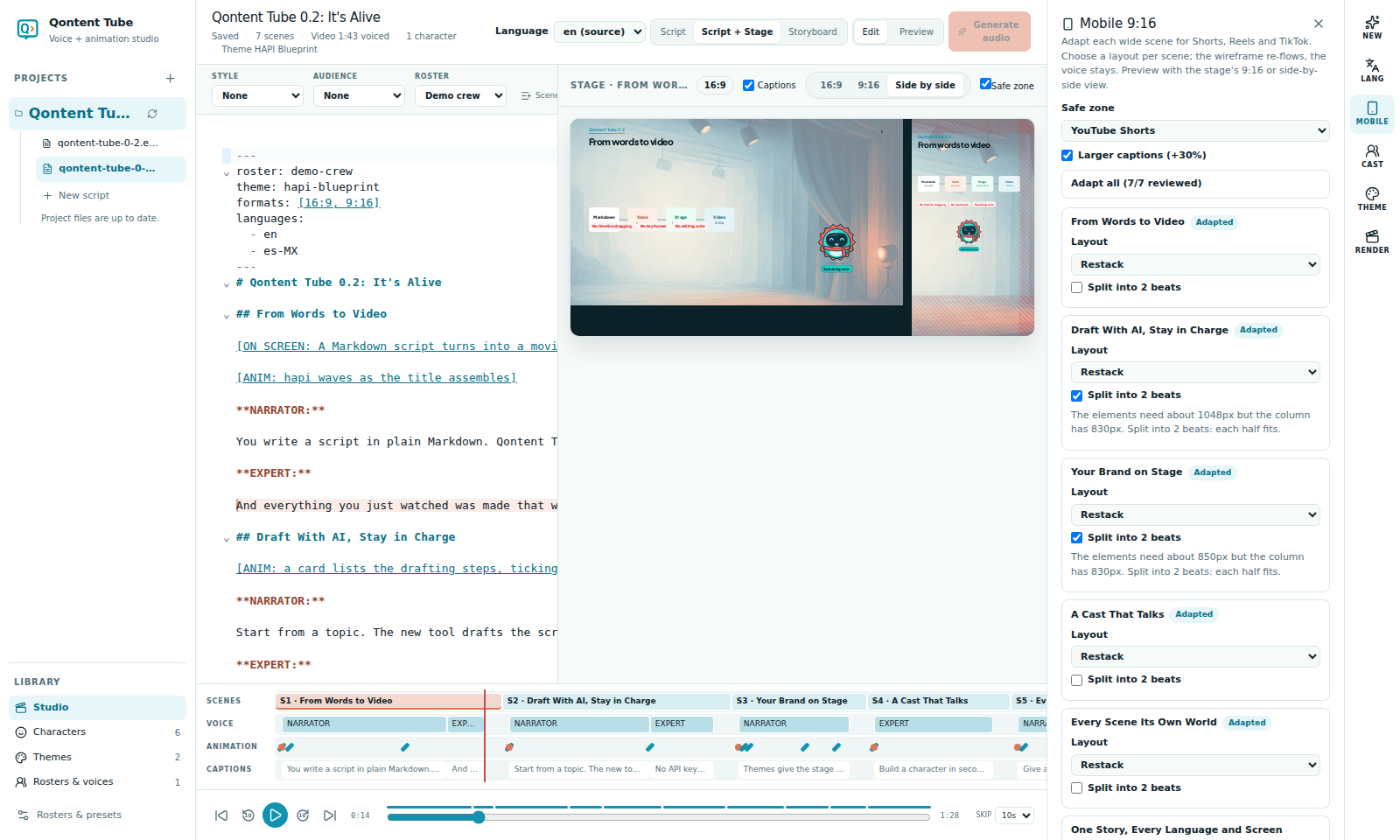
Turn on 9:16
Open MOBILE and choose Add 9:16 to this script's formats. Each scene then gets a vertical layout:
| Layout | What it does |
|---|---|
| Restack | Stacks the scene's elements vertically. Split into 2 beats shows what the narration introduces first, then switches to what comes later in the scene; characters stay on screen. |
| Focus crop | Zooms the wide stage onto one element. |
| Letterbox | Shows the wide stage between a title band and the captions. |
Scenes start with an automatic layout and the Needs review badge. When an element will not fit — for example "the flow is wider than 9:16" — MOBILE explains why and suggests a layout. Apply accepts one suggestion; Adapt all accepts every scene.
Safe zones and captions
Choose YouTube Shorts, Instagram Reels, or TikTok to keep captions and content clear of each platform's buttons and bars. The stage draws the zone over the 9:16 preview, and MOBILE warns when something reaches into it. Larger captions makes 9:16 captions 30% bigger.
Preview
In Script + Stage, switch the stage to 9:16 or Side by side.
Render and split into parts
In RENDER, choose 9:16 · 1080 × 1920. Split into parts under 60 s also writes numbered parts, cut at scene boundaries, each starting with a "Part n of N" card. MOBILE lists the planned parts and flags scenes longer than 59 seconds on their own.